
The Notifications integration stores global credentials for SMS providers and connects a Slack workspace. After global setup, a form can add SMS or Slack actions under Notifications.
Choose an SMS provider
Kali Forms exposes five provider configurations. Provider accounts may require billing credit, an approved sender, and destination-country compliance before messages can be sent.
| Kali Forms provider | Required global credential | Official source |
|---|---|---|
| Twilio | Account SID and Auth Token. Twilio recommends API keys for production applications, but the Kali Forms fields in this build specifically accept the account SID/token pair. | Twilio Auth Tokens, secure credentials |
| Nexmo (Vonage) | API key and API secret from the Vonage API Dashboard. Kali Forms retains the former Nexmo name. | Vonage API authentication |
| Clockwork | API key for the Clockwork account. | Clockwork SMS API documentation, send-SMS parameters |
| Clickatell | API key from My Workspace > API Integrations for the intended integration. | Find a Clickatell API ID or API key |
| SMSGlobal | API key and API secret from MXT. Kali Forms labels the second value SMSGlobal API password. | SMSGlobal REST API |
Create or choose an approved sender number/ID in the provider account. The From number or short number used in the form action must be permitted for the destination country and account. Use E.164 formatting for phone numbers when the provider requires it.
Save SMS credentials globally
- In WordPress, edit any Kali form.
- Open Integrations > Notifications.
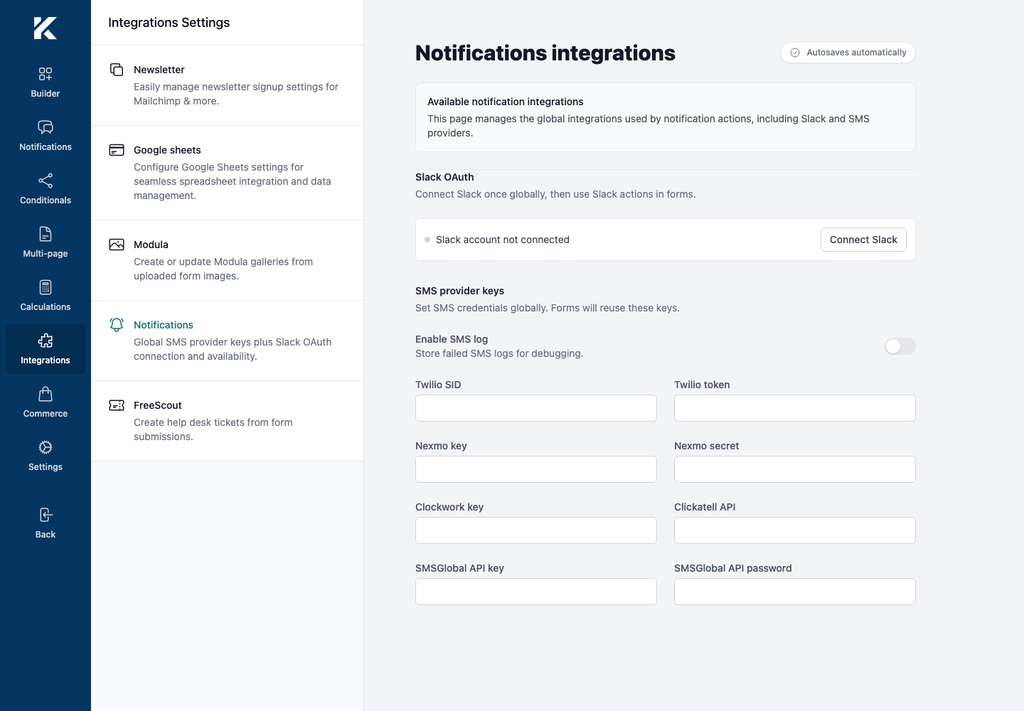
- Under SMS provider keys, fill only the fields for the chosen provider:
- Twilio SID and Twilio token;
- Nexmo key and Nexmo secret;
- Clockwork key;
- Clickatell API;
- SMSGlobal API key and SMSGlobal API password.
- Leave every unused provider credential blank.
- Keep Enable SMS log disabled initially. Enable it only for a controlled failure test; logs may contain phone numbers, message text, and provider errors.
- Wait for autosave, reload the builder, and confirm the intended fields remain populated.
Add an SMS action to a form
- Open the form’s Notifications screen.
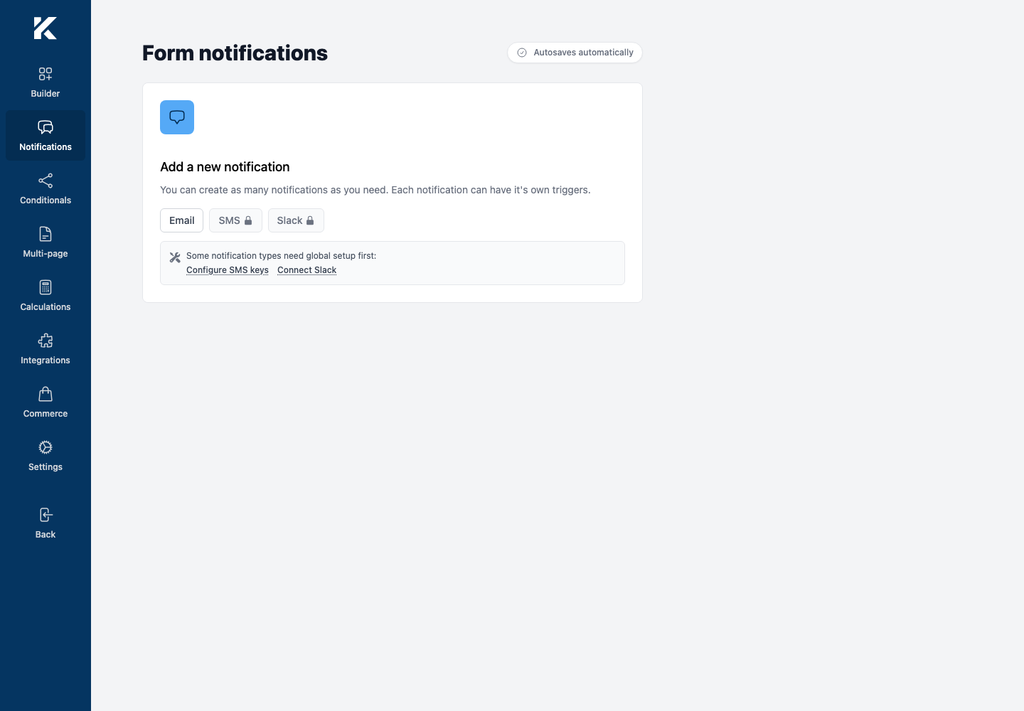
- Select SMS. The button remains locked until Kali Forms detects a complete credential set for at least one provider.
- Enter a descriptive Name for the action.
- Choose the Provider that matches the saved credentials.
- Enter To number. Use a Smart Tag/form placeholder only when the form collects and validates the destination number with consent; otherwise use an authorized fixed number.
- Enter From number or short number exactly as approved by the provider.
- Enter the Message body. Keep it short and identify the site or service.
- Configure Should send sms when the message should run only for specific submissions.
- Wait for autosave, reload the builder, and confirm every value and condition remains intact.
Do not use SMS for passwords, full payment details, sensitive health data, or other secrets. Message bodies and destination numbers pass through the selected third party.
Connect Slack
Kali Forms uses an OAuth connection rather than asking for a Slack client ID or token.
- Edit a form and open Integrations > Notifications.
- Under Slack OAuth, select Connect Slack.
- Review the Slack workspace, Kali Forms app identity, requested scopes, and target channels on the Slack consent screen.
- Approve only the workspace and permissions intended for this WordPress site.
- Return to Kali Forms and confirm Slack account connected appears.
Slack explains the OAuth V2 code/token flow and scope approval in Installing with OAuth. The Kali Forms connection URL is generated through a Kali Forms service, and the exact requested scope set was not available in the local unconnected UI. Treat the Slack consent screen as authoritative; cancel if it asks for unexpected access.
Add a Slack action to a form
- Open the form’s Notifications screen.
- Select Slack. It remains locked until the global OAuth connection is present.
- Enter a descriptive action name.
- Select Message type (text, block):
- choose Text for a composed message;
- choose Block to send selected form-field values in a structured message.
- Under Where, choose the authorized channel or conversation.
- For a block message, use Select fields to send through the block message and include only the data that belongs in Slack.
- Configure Should send notification if the Slack message is conditional.
- Wait for autosave, reload, and confirm the destination, fields, and condition remain selected.
Never send passwords, payment data, private file links, or regulated data to a Slack channel. Confirm the channel membership and retention policy before mapping form fields.
Verify the runtime before launch
Because saved configuration is not evidence of a delivered notification, use this staging test after updating to a build that includes the required runtime handlers:
- Use a provider sandbox/trial destination or a phone number and Slack workspace you are authorized to test.
- Configure one minimal SMS or Slack action with synthetic message text.
- Submit the form once.
- Confirm the provider records exactly one accepted request.
- Confirm the destination receives exactly one message with resolved values and no raw
{placeholder}text. - Test the false side of every condition and confirm no request is made.
- Check Kali Forms and provider logs for errors or duplicates.
- Remove the test notification, message, form entry, and temporary provider log data.
Stop if the form reports success, but the provider has no request: that matches the missing-listener limitation above. Do not use direct database or code injection as a production workaround.
Rotate, disconnect, and revoke
SMS
- Disable SMS actions on forms.
- Rotate or revoke the exposed key/token/secret in the provider console.
- Replace the value under Integrations > Notifications.
- Run one authorized staging test.
- Remove obsolete credentials and sensitive troubleshooting logs.
Slack
- Disable Slack actions on forms.
- Use Disconnect under Slack OAuth to remove Kali Forms’ locally stored connection.
- Revoke or uninstall the app from Slack’s authorized-app management when retiring it. Slack also documents token revocation through its OAuth APIs in the OAuth V2 guide.
- Reconnect only to the intended workspace and recheck every form’s destination.