
Use notification triggers to send a notification only when submitted form data matches your rules. For example, send a team notification only when the visitor selects Support in a Topic field.
Before you begin
- Add the field that the rule will evaluate to the form.
- Confirm the field’s submitted value. For a choice field, this can differ from the label shown to visitors.
- Create or open the notification that should be conditional.
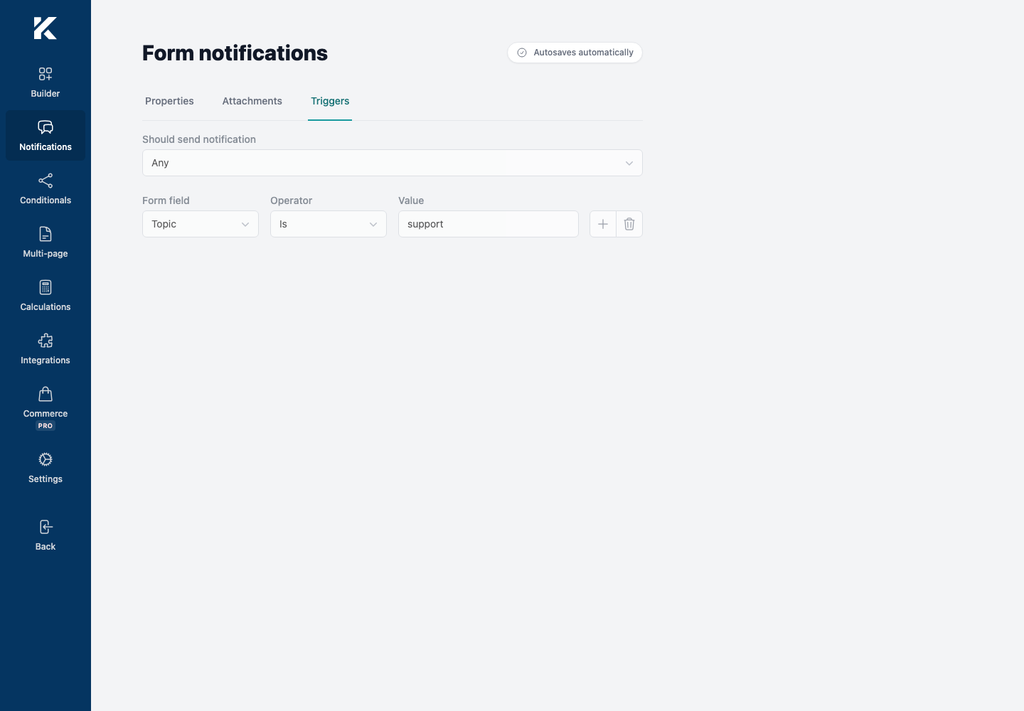
Choose how conditions are evaluated
- Open the notification and select Triggers.
- Open Should send notification.
- Choose one of the following options:
- Always sends the notification for every valid submission and does not require a condition.
- Any sends it when at least one configured condition matches.
- All sends it only when every configured condition matches.
With only one condition, Any and All produce the same result.
Configure a condition
- Under Form field, choose the field to evaluate.
- Under Operator, choose the comparison.
- Under Value, enter the value that the submission must match.
- To create another rule, select Add and configure the new row.
- To delete a rule, select Remove in that row.
- Wait for All changes saved before leaving the builder.
The available operators are Is, Is not, Greater than, Less than, Contains, Starts, and Ends. Use Greater than or Less than only when both the submitted value and comparison value are numeric.
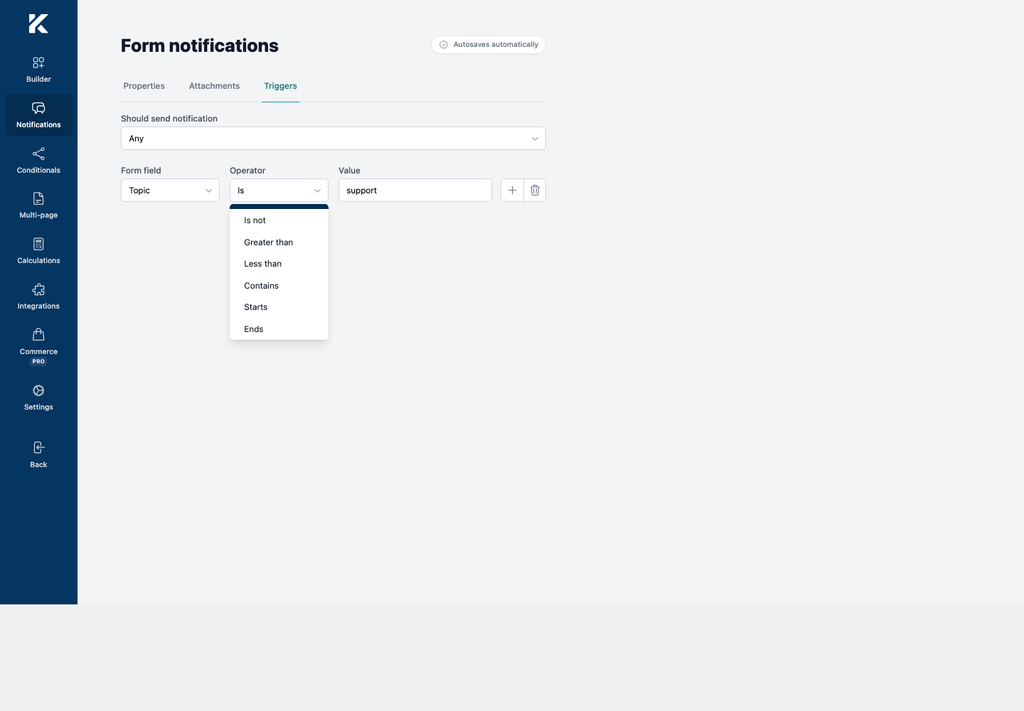
Example: route a support request
To send the team notification only for support requests, configure:
- Should send notification: Any
- Form field: Topic
- Operator: Is
- Value:
support
This rule compares the submitted value exactly. If the choice label is Support but its stored value is support, enter support.