
User Registration maps Kali Forms fields to a new WordPress user account. It supports the standard WordPress profile properties, an assigned user role, and additional values stored as user meta.
Prepare the registration form
- In WordPress, go to Kali Forms > Forms and edit the form.
- Add fields for the account properties you want to collect.
- Add a Password field if visitors will choose their password.
- In the Password field’s advanced settings, leave Hash password? (encode it) disabled. WordPress hashes the account password when it creates the user; enabling this field option prevents the submitted password from matching the new account.
- Add a submit button.
At minimum, map a unique username and an email address. Use required fields and appropriate field types for every value the account needs.
Configure User Registration
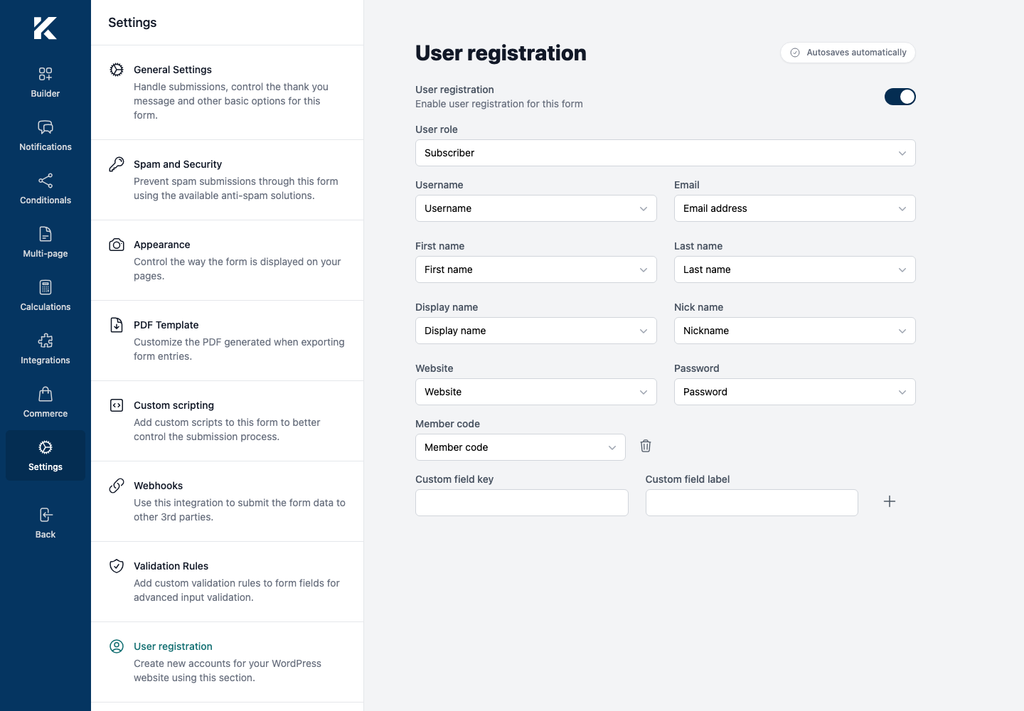
- Open Settings > User registration.
- Enable User registration.
- Select the new account’s User role.
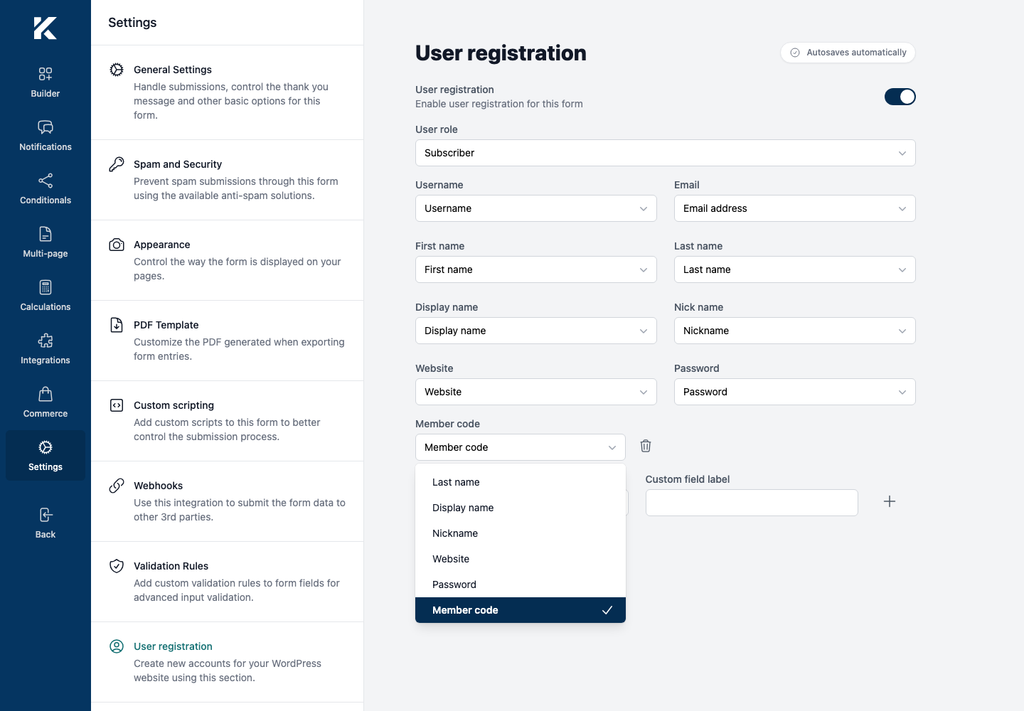
- Map the form fields to the WordPress properties you want to populate:
- Username
- First name
- Last name
- Display name
- Nick name
- Website
- Password
- To store another value as user meta, enter a Custom field key and Custom field label, then select the plus icon.
- Map the new custom field to a form field. Use the trash icon to remove a custom mapping you no longer need.
- Wait for the autosave indicator to show Saved or All changes saved.
- Reload the builder and confirm the toggle, role, profile mappings, and custom mappings are unchanged.
The available roles on the verification site were Administrator, Editor, Author, Contributor, Subscriber, Client, Customer, and Shop manager. Roles can be added by WordPress plugins, so the list on another site may differ.
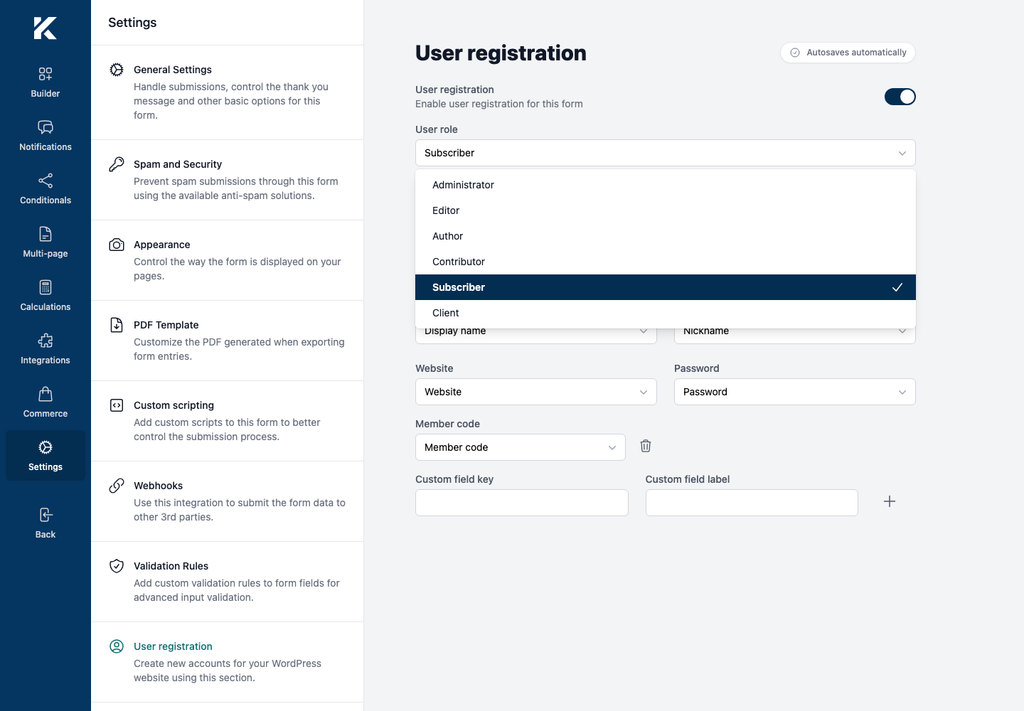
The fresh verification form initially selected Administrator. Change that selection before exposing the form. Choose the least-privileged role appropriate for the account. For a public registration form, Subscriber is the safest standard WordPress role. Never assign Administrator or another privileged role unless access to the form is strictly controlled and the requirement has been reviewed.
Test account creation on staging
Do not rely on the form’s thank-you message as proof that registration succeeded.
- Submit a unique test username and email address on the front end.
- In WordPress, go to Users > All Users.
- Confirm that exactly one account was created.
- Open the account and verify its email, first name, last name, display name, nickname, website, and role.
- Verify any custom values in the site’s user-meta viewer or database. WordPress does not display arbitrary user meta on the standard profile screen.
- Confirm the submitted password can sign in to the test account.
- Submit the same username again and confirm the form displays Username already exists without creating another account.
- Delete the test account and any saved form entry when testing is complete.
Also enable appropriate spam protection and rate limiting, collect only the profile data the site needs, and publish the site’s privacy and retention information before exposing a registration form publicly.