
Smart Tags are placeholders that Kali Forms replaces with site information, form details, or submitted field values when it sends a notification. Use them to personalize a message or send it to an address entered in the form.
Before you begin
Open an email notification in the form builder. If you need a submitted value, make sure the corresponding field already exists in the form.
Find an available Smart Tag
- In the notification’s Properties tab, go to Email body.
- Select Smart tags.
- Find the required tag in the Smart Tags list.
- Select the copy action beside the tag.
- Select Close.
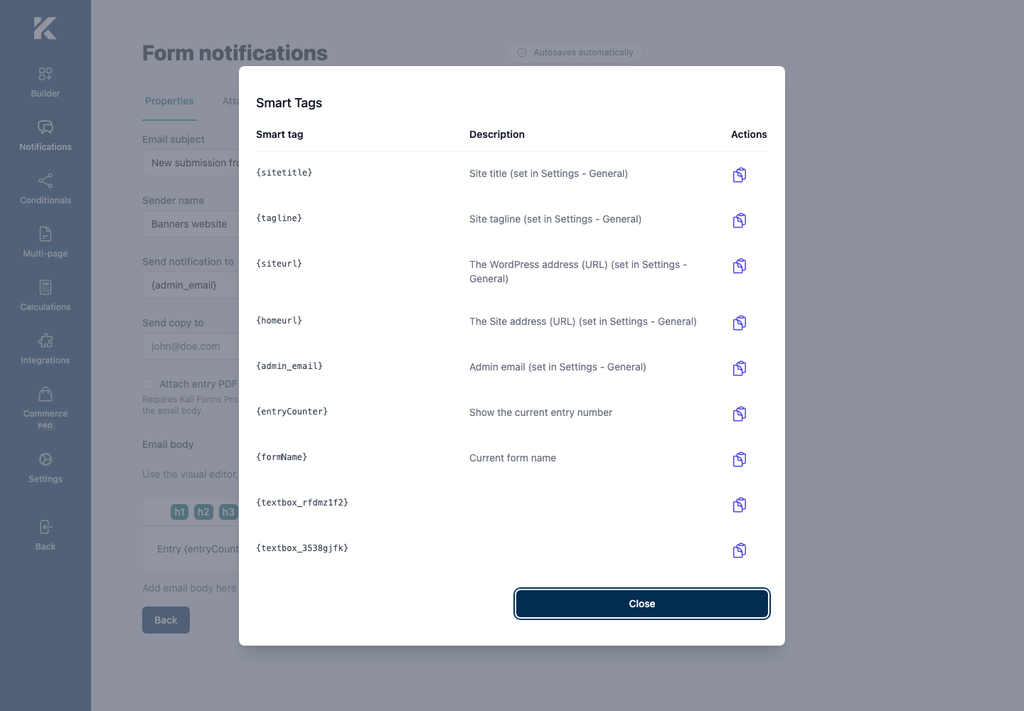
The list includes general tags such as:
{sitetitle}for the WordPress site title;{admin_email}for the WordPress administration email;{entryCounter}for the current entry number;{formName}for the current form name.
It also includes a tag for each supported form field. Field tags use the field’s configured name or identifier, so your list will differ from the example.
Add a Smart Tag to the notification
- Place the cursor where the value should appear.
- Paste or enter the complete tag, including its opening and closing braces.
- Repeat for each dynamic value you need.
- Wait for All changes saved before leaving the builder.
You can use Smart Tags in the email subject, sender and recipient properties, and email body. For example:
- Email subject:
New submission from {formName} - Send notification to:
{admin_email} - Email body:
Entry {entryCounter} was received for {formName}.
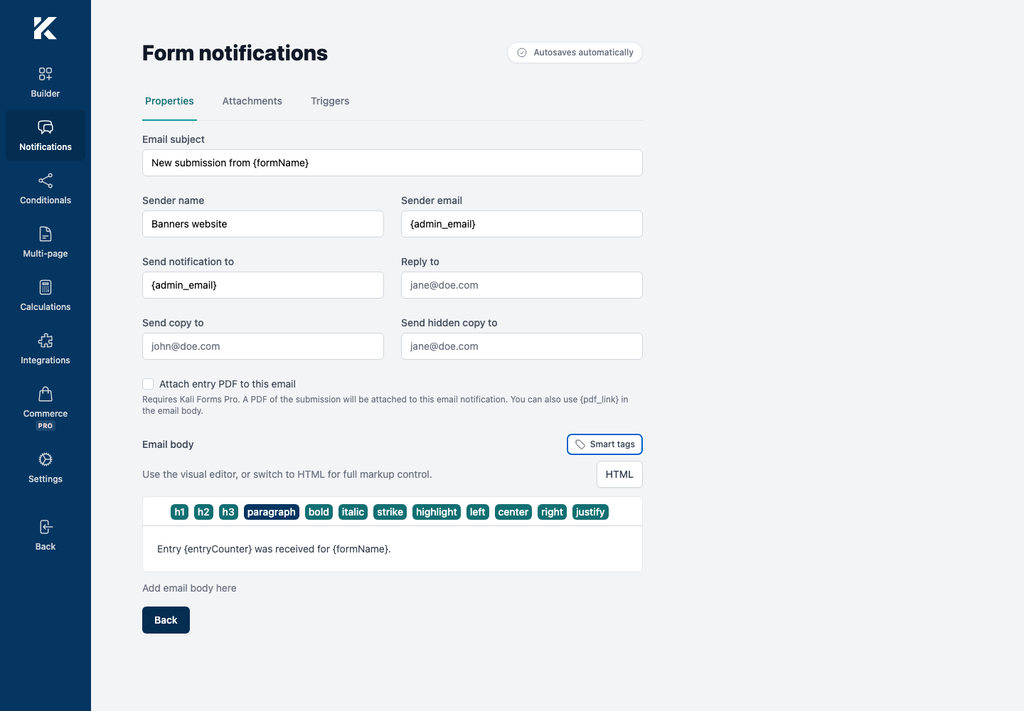
When you use a form field tag in an address property, make sure that field collects an email address. A text value that is not a valid address cannot be used as an email recipient.