
The FreeScout integration creates a help-desk conversation from a Kali Forms submission and maps the submitter to a FreeScout customer.
What you need
- a reachable FreeScout installation using HTTPS;
- FreeScout’s API & Webhooks module installed and active;
- permission to open Manage > API & Webhooks and retrieve the API key;
- at least one FreeScout mailbox available to the API;
- a Kali form containing a required Email field;
- optional first-name and last-name fields;
- a decision about which form values may be copied into the help desk.
FreeScout’s official API overview states that the API & Webhooks module is required and that the key is retrieved under Manage > API & Webhooks. The module page covers installation and API availability.
Obtain the FreeScout API key
- Sign in to FreeScout as an authorized administrator.
- Confirm the API & Webhooks module is installed and current.
- Go to Manage > API & Webhooks.
- Copy the API key using a secure credential manager.
- Confirm that API access can list the mailbox intended for the form.
Kali Forms sends the key in the X-FreeScout-API-Key request header, one of the authentication methods documented by the FreeScout API. Treat this key as a server credential; do not share it with form editors who do not administer the integration.
Enter the connection details
- In WordPress, go to Kali Forms > All forms and edit the form.
- Open Integrations > FreeScout.
- Enable FreeScout.
- In FreeScout URL, enter the root URL of the FreeScout installation, for example: https://support.example.com
Do not append `/api`. Kali Forms appends `/api/mailboxes` and `/api/conversations` itself. - Paste the credential into API Key.
- Select Test Connection only when the site is allowed to contact the FreeScout server. This performs a live mailbox request.
- Select Fetch Mailboxes.
- Choose the destination Mailbox.
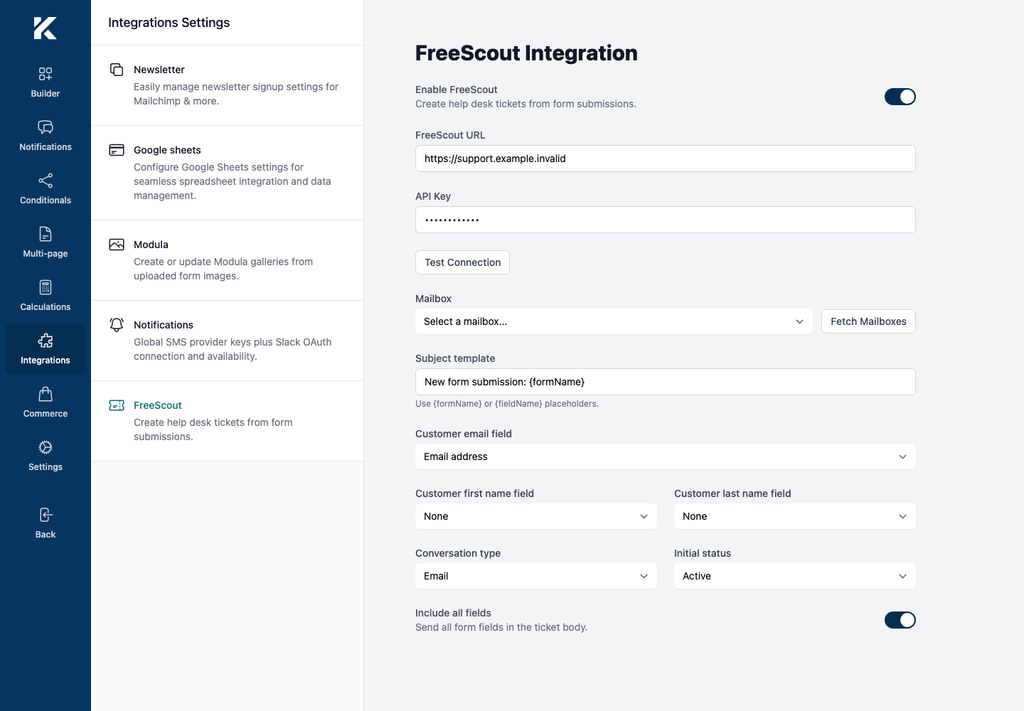
The screenshot uses support.example.invalid, a non-routable documentation placeholder. Neither connection button was selected.
Configure the conversation
- Enter a Subject template. Kali Forms supports
{formName}and submitted-field placeholders, for example: Website request: {formName} - Set Customer email field to the form’s required Email field. The runtime stops without a valid mapped email.
- Optionally set Customer first name field and Customer last name field.
- Set Conversation type:
- Email for a standard email-style support request;
- Phone only when that representation matches the help-desk workflow.
- Set Initial status to Active, Pending, or Closed. Active is normally appropriate for a new request that needs attention.
- Leave Include all fields enabled only if every submitted field belongs in the support ticket.
- To minimize transferred data, disable Include all fields and select only the fields needed by support.
- Wait for autosave, reload the builder, and confirm the URL, mailbox, subject, customer mappings, type, status, and included fields remain selected.
The installed handler builds an HTML table from the selected form values and sends it as a customer thread. It sets imported to true; FreeScout documents that imported conversations do not generate outgoing emails/notifications, autoresponders, or workflows. Review the exact current behavior in FreeScout’s Create Conversation API.
Verify safely
- Use a staging form and an authorized FreeScout test mailbox.
- Use a unique synthetic email address that your organization controls.
- Select Test Connection and confirm Kali Forms reports a successful mailbox request.
- Select Fetch Mailboxes and verify only expected mailboxes appear.
- Submit one synthetic support request.
- In FreeScout, confirm exactly one conversation exists in the chosen mailbox.
- Verify the subject, customer, type, status, and included values.
- Confirm excluded form fields are absent.
- Confirm no autoresponder or workflow ran unexpectedly. The request uses
imported: true, but server modules and customizations should still be checked. - Delete the synthetic conversation/customer as appropriate, remove the form entry, and restore the test mailbox.
Do not test first with a real customer’s request. Do not map passwords, payment data, authentication tokens, or private uploads into the ticket body.
Secure and revoke access
- Use HTTPS for both WordPress and FreeScout so the API key and ticket data are encrypted in transit.
- Limit WordPress administration and backup access because the key is stored with the form configuration.
- Do not place the key in screenshots, repositories, browser recordings, logs, or support tickets.
- Keep the FreeScout instance URL fixed to the intended server; it controls where WordPress sends the credential and submitted data.
- If the key is exposed, disable the integration, rotate/regenerate it under Manage > API & Webhooks, replace it in every affected form, and repeat the staging test.
- When retiring the integration, disable it on all forms, remove the key from Kali Forms, and revoke/regenerate the FreeScout API key.