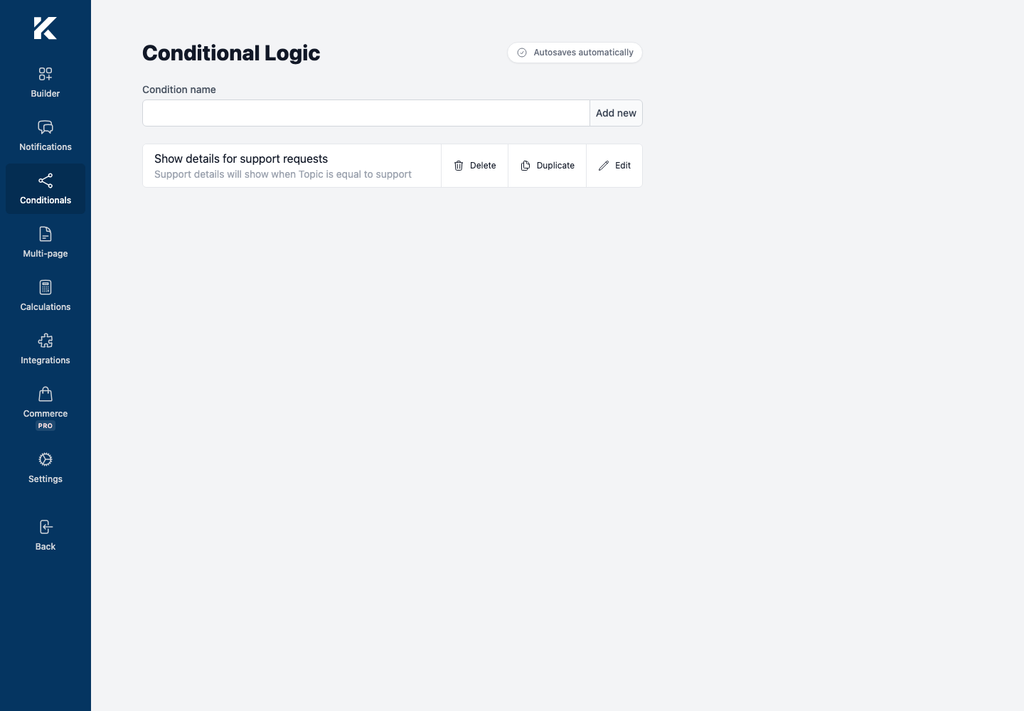
Create a rule that shows or hides one existing field when another field has a selected value. This example shows a details field when Topic equals support.
Before you begin
- Add both the field you want to control and the field whose value will activate the rule.
- For a choice field, confirm the stored value as well as the label shown to visitors.
- Wait for the builder to save your form.
Create the condition
- Open Kali Forms > Forms and edit the form.
- Select Conditionals in the builder navigation.
- Select Add new.
- In Condition name, enter a descriptive internal name.
- Under The conditioned entity, select the field to control.
- Under What will happen to the field, select Show or Hide.
- Under If this field, select the conditioner field.
- Under Has the selected value, select Equal to, Different than, or One of.
- Under Value, select or enter the value that activates the rule.
- Wait for the saved status, then select Back to list.
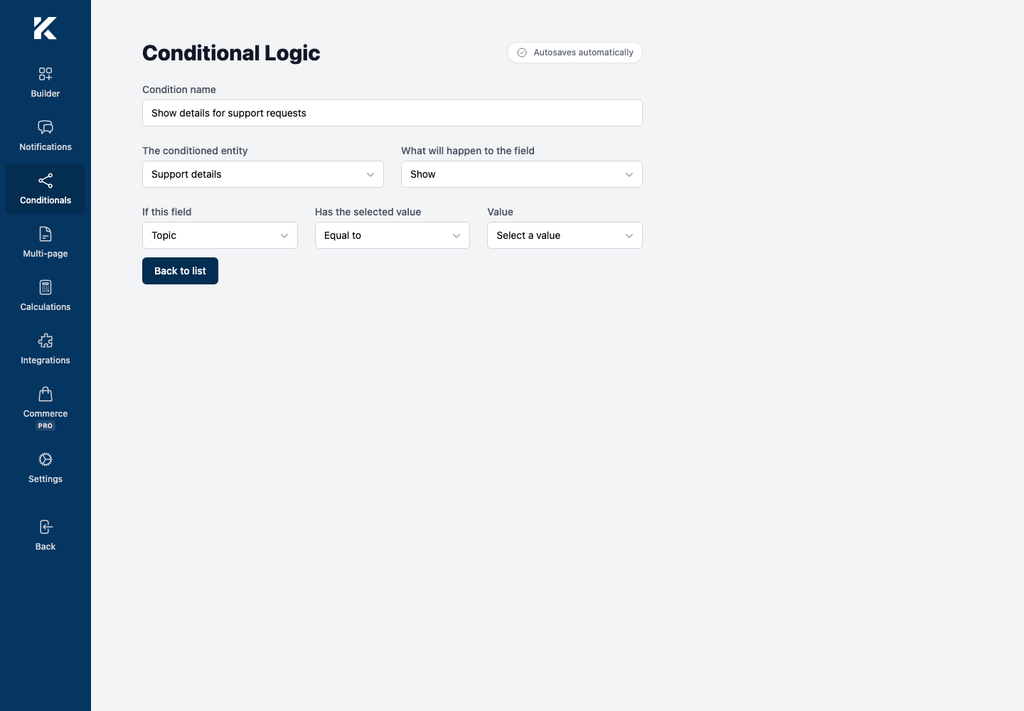
The condition list should summarize the same rule so you can review it without reopening the editor.