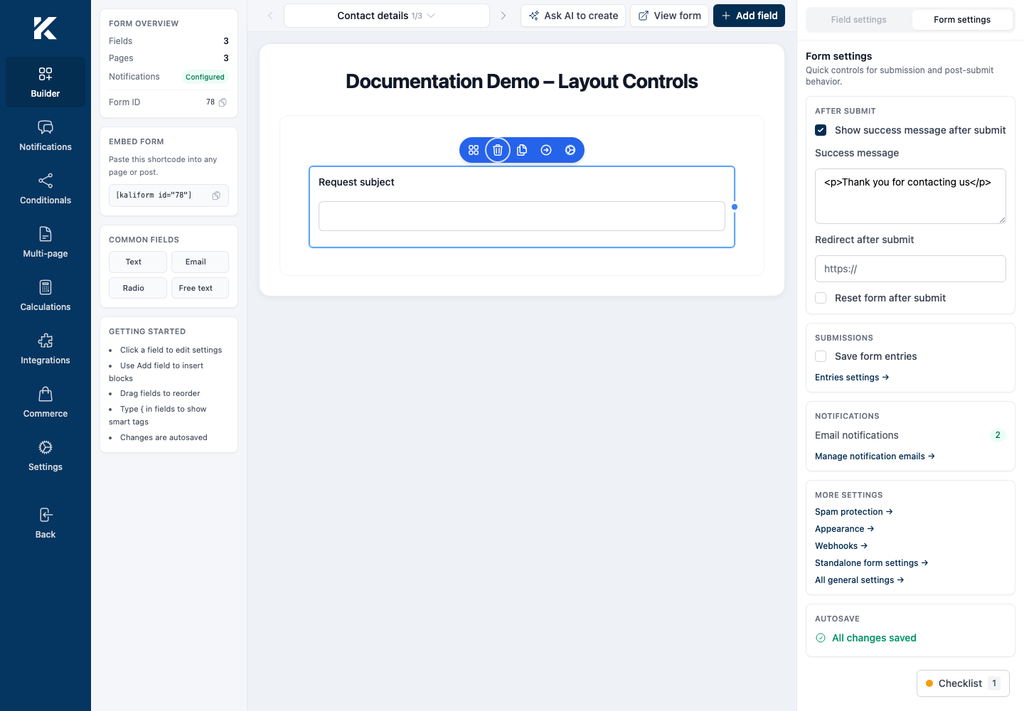
Use the Kali Forms builder to add fields, change their width, reorder them, or create and remove copies. Layout changes are saved automatically.
Add a field
- Select Add field at the top of the builder.
- Browse a field group or use Search.
- Select the field you want to add.
- Select the new field in the canvas, then use Field settings to configure it.
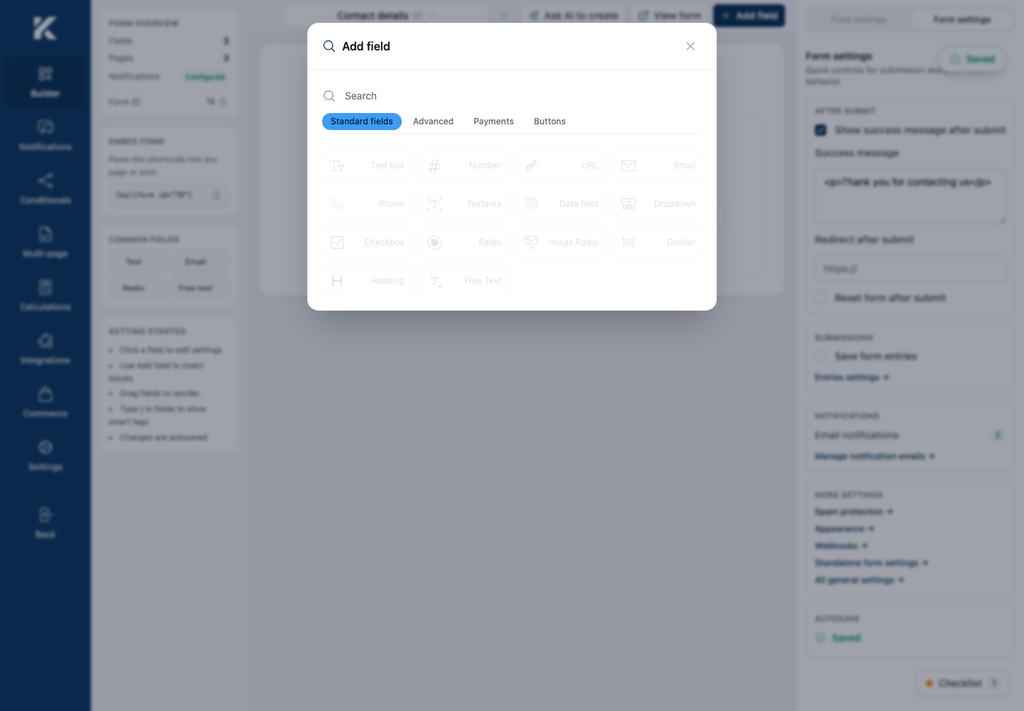
The new field is added to the form canvas. You can add the same field type more than once and configure each instance separately.
Change a field’s width
The canvas uses a 12-column grid. New fields normally occupy the full available width.
- Move the pointer to the left or right edge of a field.
- When the resize handle appears, drag the edge horizontally.
- Release the pointer when the field occupies the required number of columns.
The minimum width depends on the field type. If the field stops resizing, it has reached its supported minimum width. Place fields on the same row by reducing their widths until they fit within the grid.
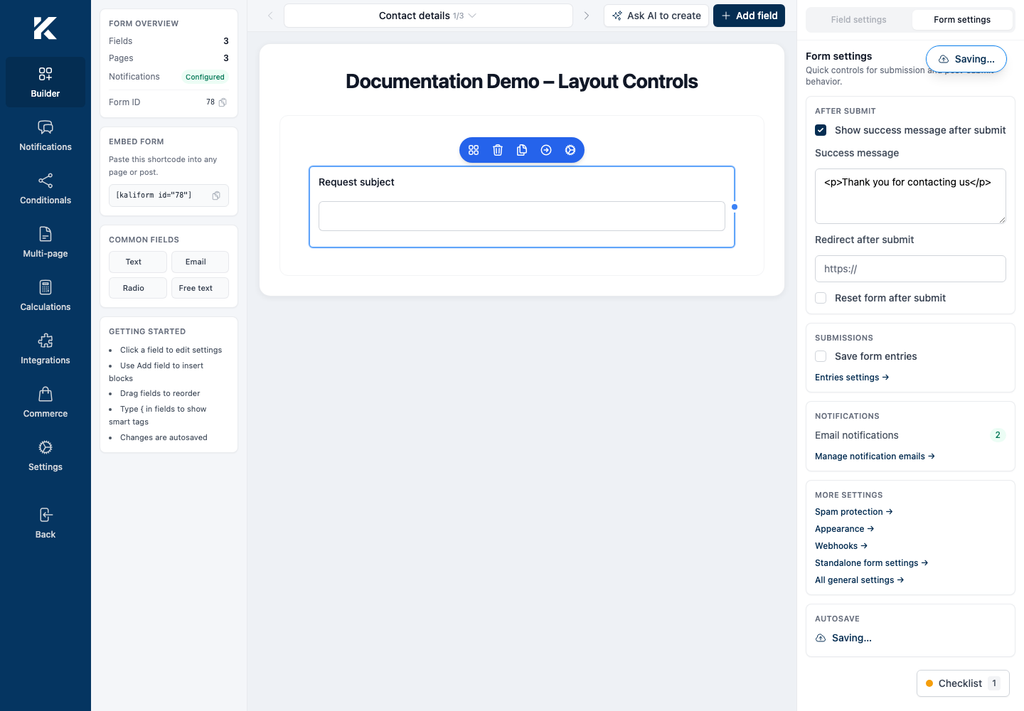
Reorder a field
- Move the pointer over the field.
- Drag the Move field handle.
- Drop the field in the highlighted position.
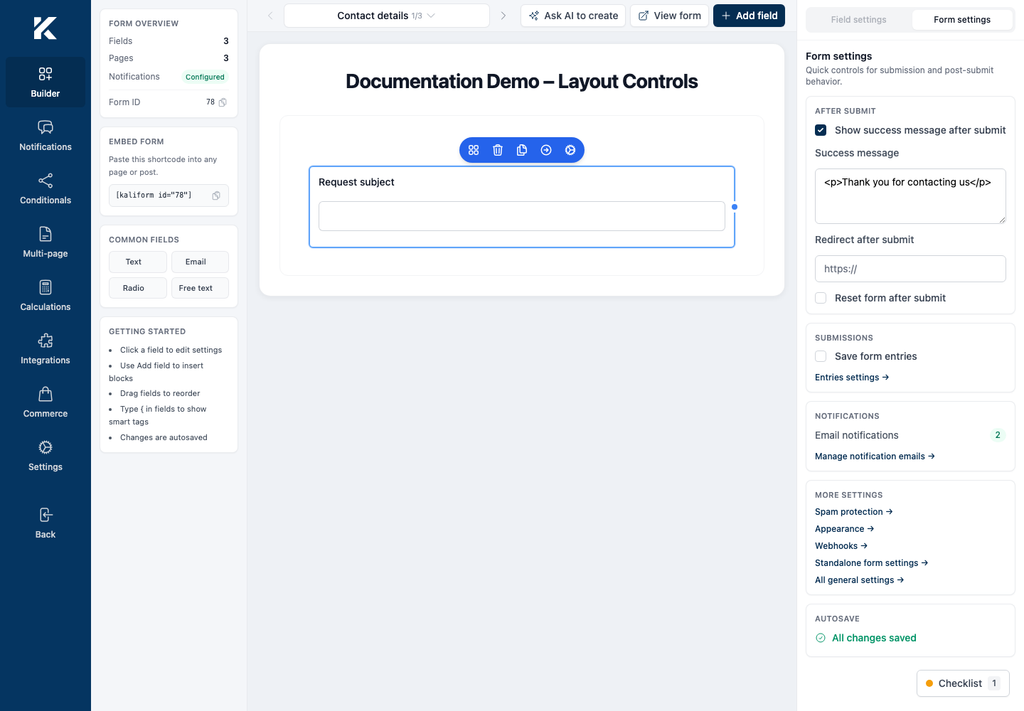
The surrounding fields move to make room. If a field does not remain on the intended row, check whether the combined widths exceed the available 12 columns.
Duplicate a field
- Move the pointer over the field.
- Select Duplicate field.
- Open the copy and update its field settings as needed.
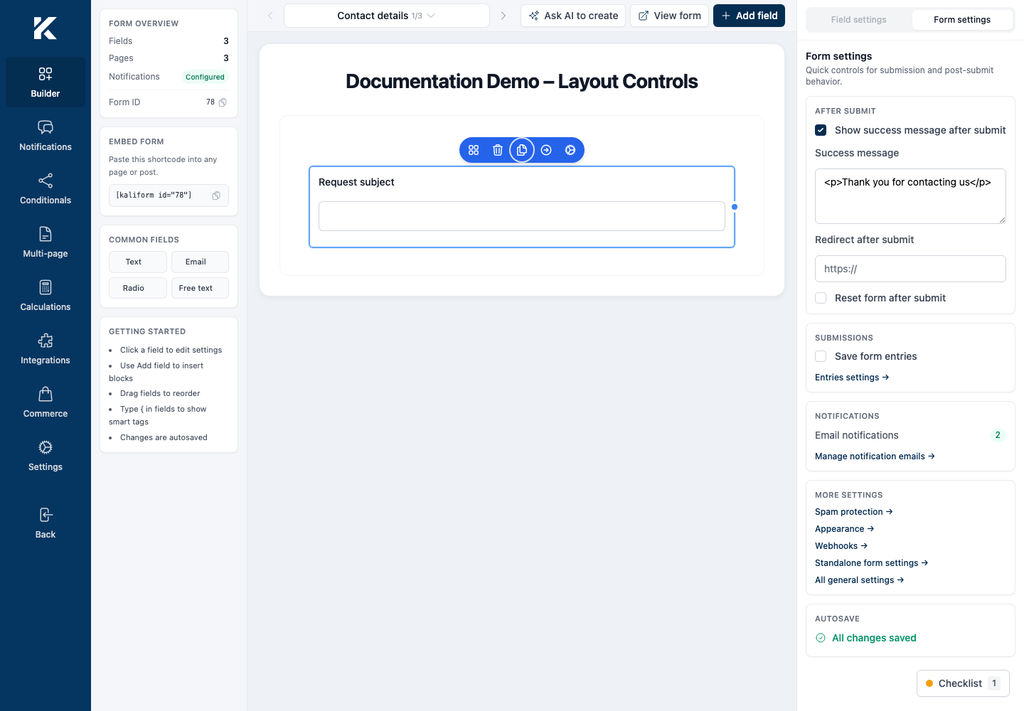
The copy is added to the canvas with the source field’s configuration. Review identifiers and labels before using both fields in notifications, conditions, or calculations.
Delete a field
- Move the pointer over the field.
- Select Delete field.