
Notifications send information after a visitor submits a Kali Forms form. Each notification belongs to one form and can have its own recipients, message, attachments, and triggers.
Open form notifications
- In WordPress, go to Kali Forms > All Forms.
- Open the form you want to edit.
- Select Notifications in the builder navigation.
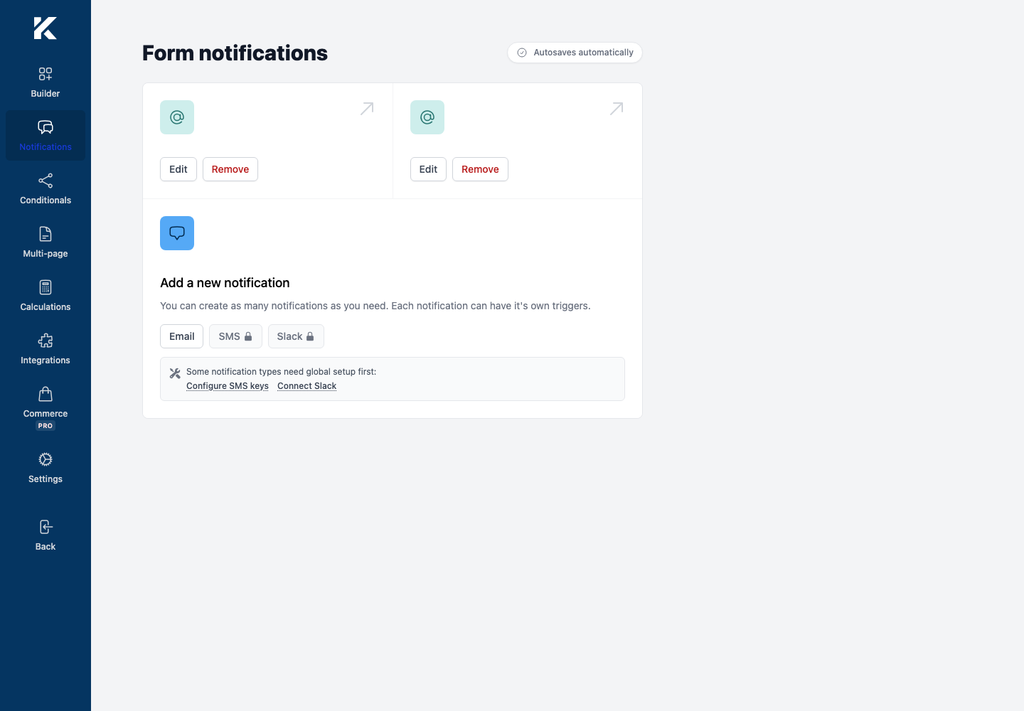
The Form notifications screen shows the notifications already attached to the form and the notification types you can add.
Understand the notification types
- Email sends an email through the mailer configured for the WordPress site.
- SMS sends a text message through a configured SMS provider. This type requires Kali Forms Pro and SMS provider credentials.
- Slack posts a message to a connected Slack workspace. This type requires Kali Forms Pro and a Slack connection.
The SMS and Slack buttons remain unavailable until their required global setup is complete. Use Configure SMS keys or Connect Slack on the notification screen to open that setup.
Understand an email notification
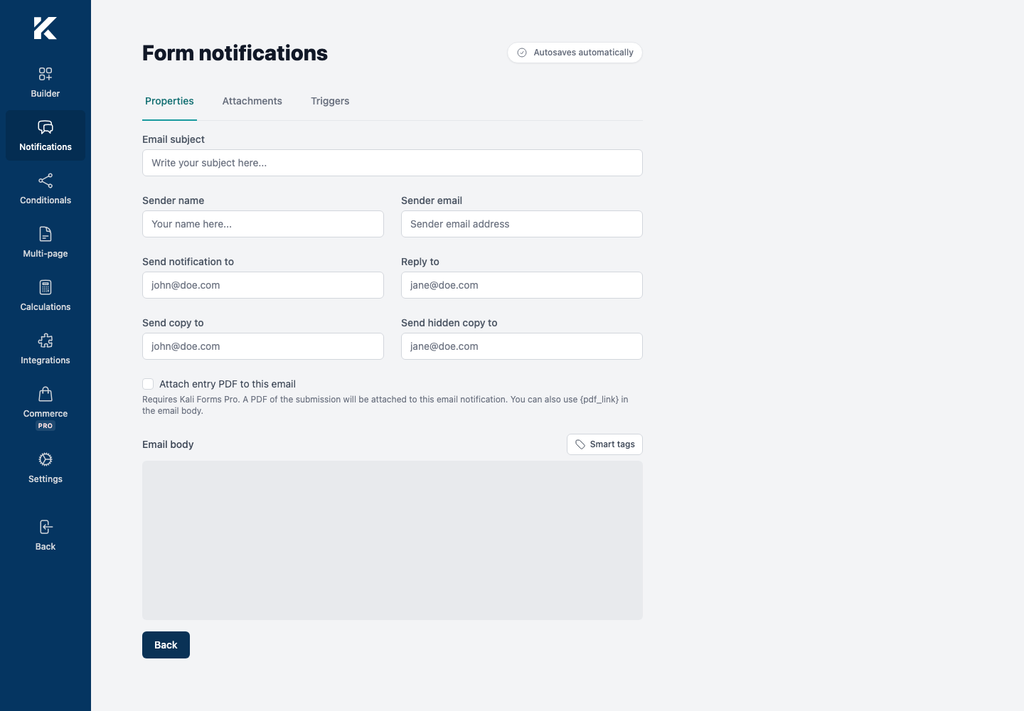
Select Edit on an email notification to open its settings. The editor groups the configuration into three tabs:
- Properties contains the subject, sender, recipients, and message body.
- Attachments controls files attached to the email. Attaching an entry PDF requires Kali Forms Pro.
- Triggers controls whether the notification is always sent or sent only when submission data matches conditions.
Changes in the builder save automatically. Wait for All changes saved before leaving the form after making an edit.