
Review every notification before submitting a test entry. This catches missing recipients, incorrect Smart Tags, unintended attachments, and trigger rules that would prevent a message from sending.
Review the notification list
- Open the form in the Kali Forms builder.
- Select Notifications.
- Confirm that the list contains every message the form should send.
- Use each card’s subject and message preview to identify its purpose.
- Remove accidental or duplicate notifications before testing.
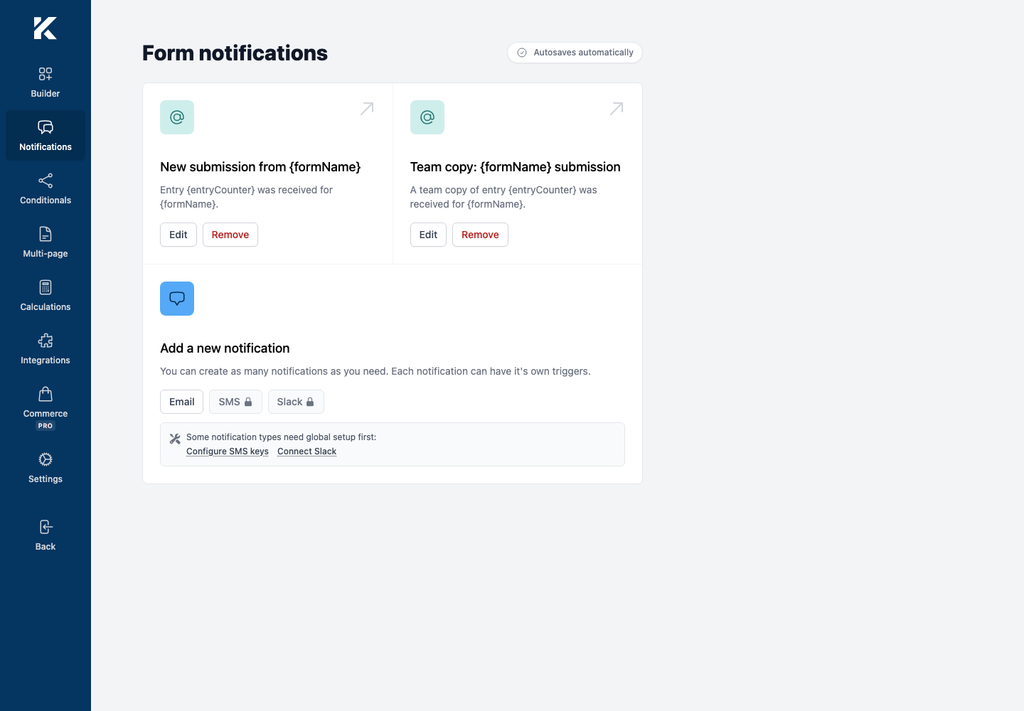
Review each notification
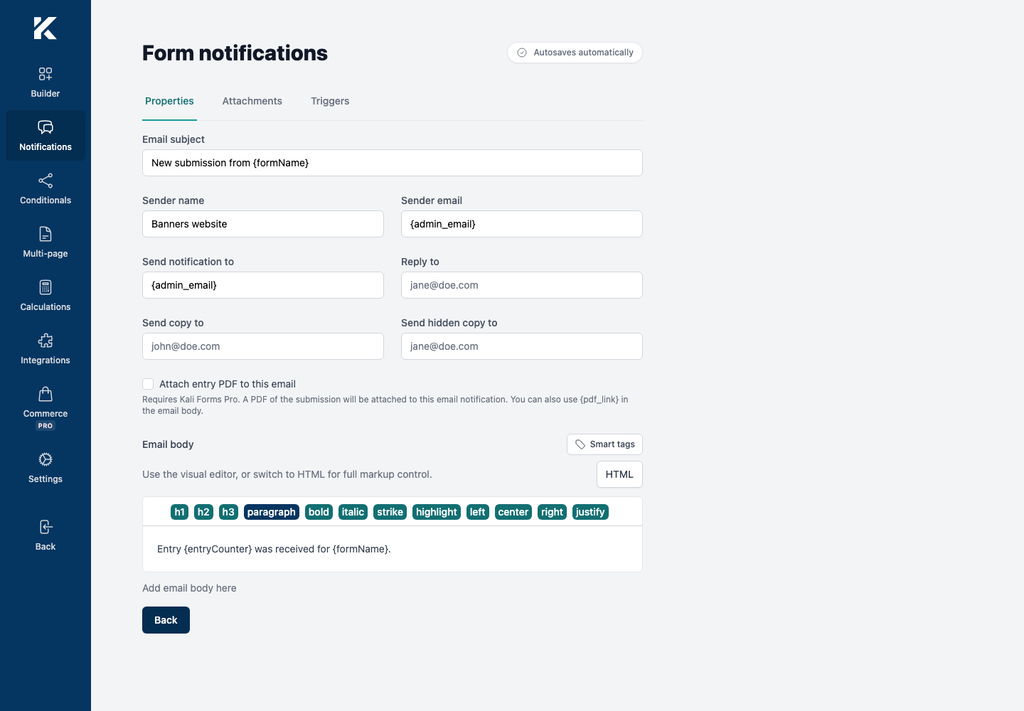
Select Edit on the first notification, then complete the following checks. Repeat them for every notification card.
Properties
- Email subject describes the message and contains only valid Smart Tags.
- Sender name identifies the site or organization.
- Sender email is an address the site is authorized to send from.
- Send notification to contains the intended recipient or an email-field Smart Tag.
- Reply to, Send copy to, and Send hidden copy to do not contain stale or unintended recipients.
- Email body contains the required context and complete Smart Tags.
- Attach entry PDF to this email is enabled only when Kali Forms Pro is active and the recipient should receive the PDF.
Attachments
Select Attachments and confirm that only the required upload fields or Media Library files are attached. Check that recipients are permitted to receive the selected files and that the files are small enough for the site’s mail provider.
Triggers
Select Triggers and verify Should send notification:
- Use Always when the notification should be sent for every valid submission.
- Use Any when one matching condition is sufficient.
- Use All when every configured condition must match.
For each condition, review the Form field, Operator, and Value. Choice-field rules must use the submitted value, which may differ from the displayed label.
Wait for autosave
After the last change, wait for All changes saved before selecting Back or leaving the builder. Repeat the review if you change a field name, choice value, recipient, or notification trigger later.
Test the form
- Submit the form once for every trigger path you need to verify.
- Use recognizable test values and an email address you can access.
- Confirm which notifications arrive, their recipients, subject, body, and attachments.
- For conditional notifications, submit both matching and non-matching values.
- Check the site’s mail logs if an expected message does not arrive.
Do not use real customer data in a documentation or staging test.