
With this feature you can turn your regular form in a geniune calculator, based on your needs.
Before you begin
Create or open a form and add:
- the fields that provide values, such as Text box, Number, or Dropdown…;
- a Calculation Result field that displays the answer; and
- a Submit Button if visitors will submit the form.
Give every field a unique Field name. Calculations use these names as identifiers. For example, the fields in this guide use quantity, unit_price, and estimated_total.
Create a calculation with a preset
This example multiplies a quantity by a unit price.
- In WordPress, go to Kali Forms > Forms and edit your form.
- In Builder, add two Number fields and one Calculation Result field.
- Open each field’s settings and set unique Field name values. Use
quantity,unit_price, andestimated_totalfor this example. - Open Calculations in the form builder.
- Under Preset, select Multiply selected fields.
- Under Result field, select Estimated total (estimated_total).
- Under Source fields, select Quantity (quantity) and Unit price (unit_price).
- Check the Equation preview. It should show
estimated_total=multiply(quantity,unit_price). - Select Insert equation.
- Select Save.
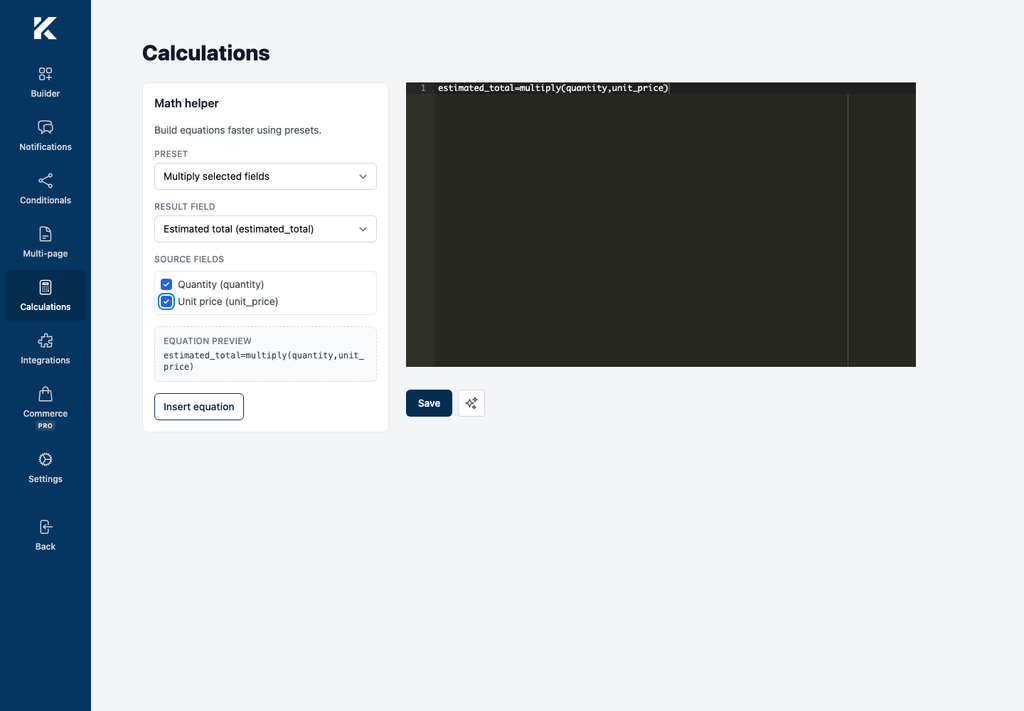
The Math helper can insert presets for sums, subtraction, division, multiplication, averages, BMI, time conversions, running calculations, speed, and differences between dates. Use the preview instead of guessing a preset’s syntax.
Configure the displayed result
Return to Builder and edit the Calculation Result field. Its relevant settings are:
- Content: identifies the value to display, such as
{estimated_total}. - Decimals: controls displayed decimal places. The default is
2. - Prefix and Suffix: add text around the result, such as
$orkg. - Use form currency as prefix: uses the form’s configured currency instead of a custom prefix.
- Copy to clipboard button: lets visitors copy the displayed result.
These settings format the output; they do not change the calculation itself.
Test the calculation
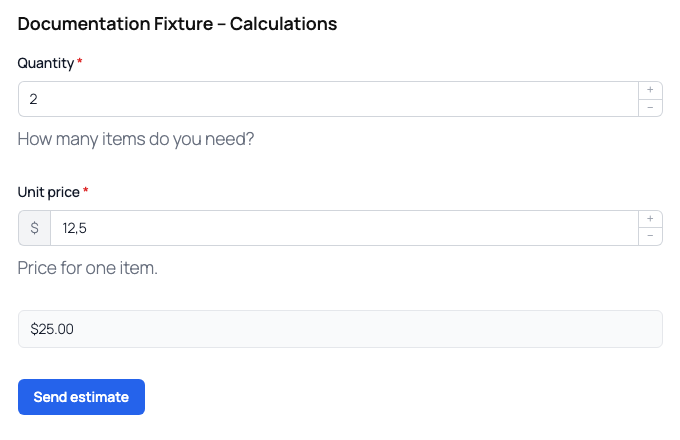
Open a page containing the form. With a quantity of 2 and unit price of 12.5, the example displays $25.00.
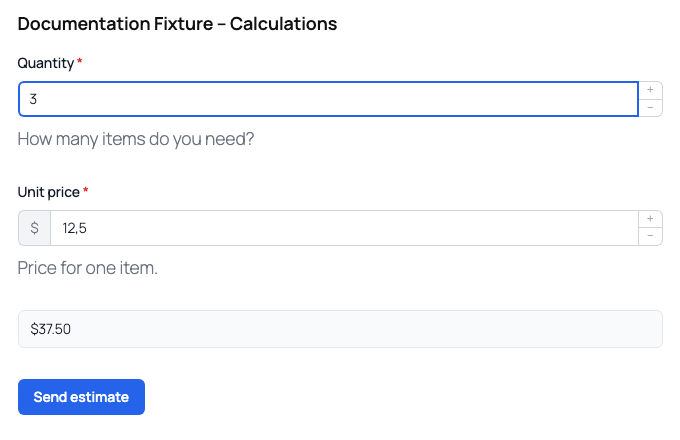
Change the quantity to 3. The result updates automatically to $37.50; the visitor does not need to submit or refresh the page.
The displayed result is rounded to the number of decimal places configured on the Calculation Result field. Empty numeric inputs are treated as zero. Required source fields still use their normal front-end validation when the form is submitted.