
Appearance settings apply a predefined visual style and optional form-specific CSS. Use them to make a form fit the surrounding WordPress theme without changing its fields or submission behavior.
Open Appearance
- In WordPress, go to Kali Forms > Forms and edit a form.
- Select Settings in the builder navigation.
- Select Appearance.
Choose a predefined style
- Open Predefined styles.
- Review the live example for each style.
- Select the style you want to use.
- Use the sun or moon control on a style card to choose its light or dark version.
- Wait for the autosave indicator before leaving the builder.
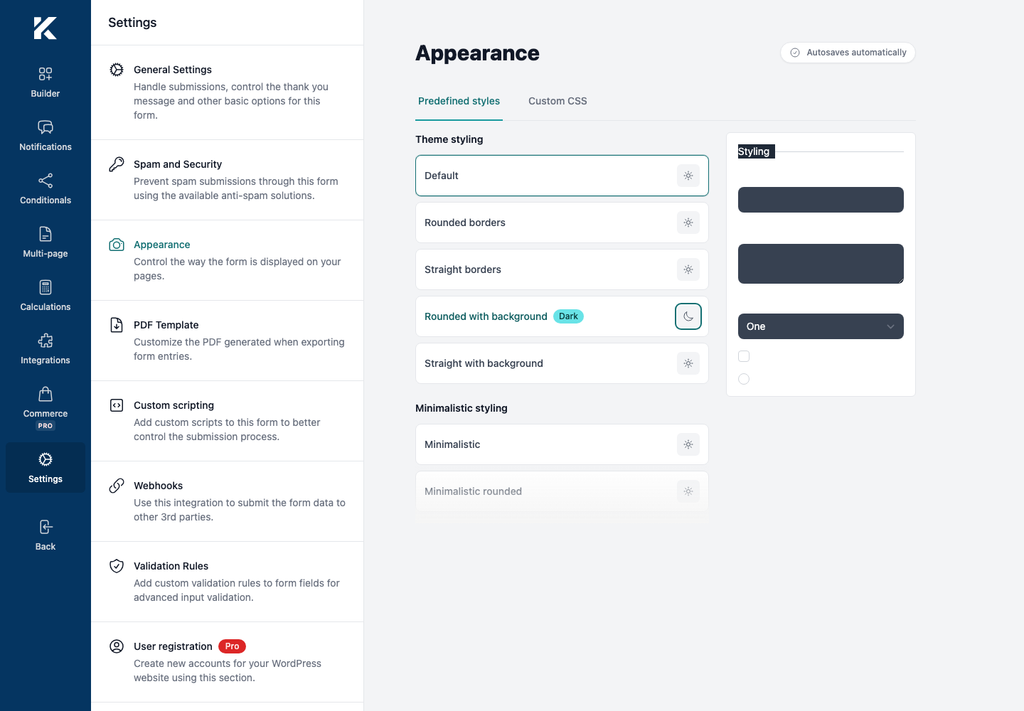
Kali Forms 3.0.0 groups the presets into:
- Theme styling: Default, Rounded borders, Straight borders, Rounded with background, and Straight with background.
- Minimalistic styling: Minimalistic, Minimalistic rounded, Minimalistic straight, Minimalistic rounded with background, and Minimalistic straight with background.
Each option has a light and dark version. The preset affects the form container, labels, and controls; it does not change the layout configured in Builder.
Add Custom CSS
Use Custom CSS for small, form-specific changes that the presets do not provide.
- Give the form a unique Form CSS Id in Settings > General Settings > Advanced.
- Return to Settings > Appearance.
- Open Custom CSS.
- Enter CSS scoped to the form’s ID.
- Select Save.
- Open a published page containing the form and verify the result at desktop and mobile widths.
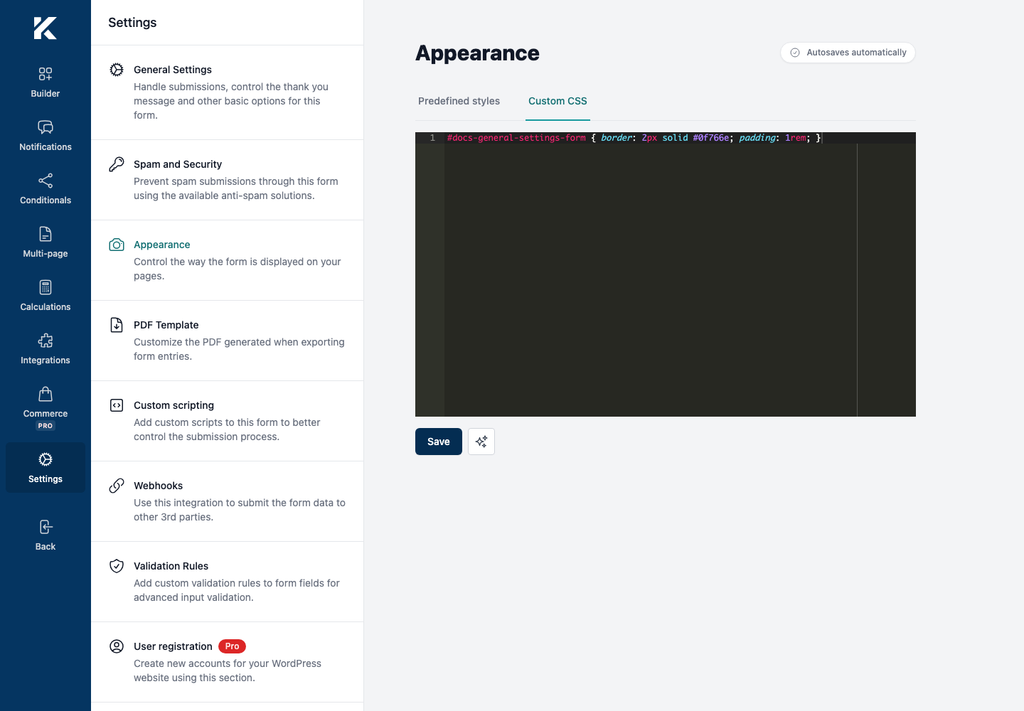
For example:
#docs-general-settings-form {
border: 2px solid #0f766e;
padding: 1rem;
}
Scoping every rule prevents the form’s styles from affecting unrelated elements on the page. Kali Forms renders the saved CSS in a form-specific <style> element on pages where the form appears.