
The Modula integration turns images uploaded through a Kali Forms form into a new Modula gallery or appends them to an existing gallery.
What you need
- Kali Forms Pro with the Modula extension enabled;
- the Modula plugin active on the same WordPress site;
- Modula Pro and Modula Defaults if your license and workflow use a Defaults preset;
- a Kali Forms File upload field configured to accept WordPress-supported image types;
- WordPress permission and storage capacity to accept the uploads;
- an existing Modula gallery if you choose Update existing gallery.
No external account, API key, OAuth grant, or provider credential is required. Images and gallery records remain on the WordPress site.
Prepare a safe upload form
- In WordPress, go to Kali Forms > All forms and edit the form.
- Add a text field if the visitor should supply part of the new gallery’s title.
- Add Advanced > File upload.
- Give the upload field a unique, stable Field name.
- Restrict Accepted extensions to image formats that the site actually supports, such as JPEG and PNG.
- Set a realistic Max file size. Do not rely only on the browser; make sure the WordPress/PHP upload limit is at least as restrictive as intended.
- Enable multiple file uploads only when the workflow needs more than one image, then set Max number of files to be uploaded and a total-size limit.
- Make the field required if an empty gallery would not be useful.
- Add clear copyright, privacy, and acceptable-content text. Never invite visitors to upload content they do not have permission to publish.
Modula’s file-type documentation explains that gallery uploads are limited by the image formats accepted by WordPress. Review the current supported image file types.
Optional: create a Modula Defaults preset
Use this when all generated galleries should share a layout and appearance:
- Go to Modula > Defaults.
- Select Add New.
- Name the preset and configure its gallery settings.
- Save the preset.
The preset selector appears in Kali Forms only when the Modula Defaults component is active and at least one preset is available.
Create a new gallery for each submission
- Edit the Kali form and open Integrations > Modula.
- Enable Modula integration.
- For Action, choose Create new gallery.
- Enter a Gallery name. You may use supported Kali Forms placeholders, for example
Uploads – {formName}or a submitted field placeholder. - Select a Defaults preset, or leave No defaults selected.
- Wait for Autosaves automatically.
- Reload the builder and confirm the toggle, action, name, and preset are unchanged.
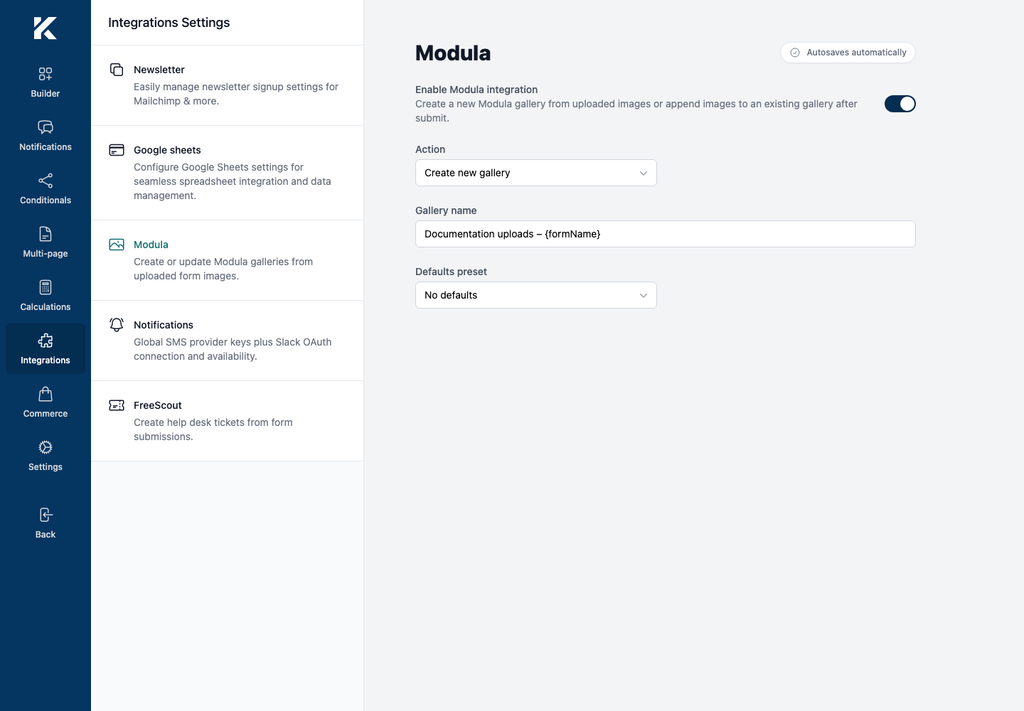
On submission, the installed source creates the Modula gallery as a draft, resolves attachments from every File upload field in the form, stores them in the gallery, and applies the selected Defaults preset. A WordPress administrator must review and publish the gallery before it appears publicly.
Add uploads to an existing gallery
- Create the destination gallery under Modula > Galleries, add any starting images, and save it. See Modula’s create your first gallery guide.
- Return to the form’s Integrations > Modula screen.
- Enable Modula integration.
- Set Action to Update existing gallery.
- Select the destination gallery.
- Wait for autosave, reload, and confirm the same gallery remains selected.
Update mode keeps the gallery’s existing image records and appends the uploaded attachment IDs. Because the selected gallery may already be public, use moderation controls when visitor uploads should not appear immediately.
Verify safely on staging
- Use a small synthetic JPEG or PNG with no personal metadata.
- Submit the form once.
- Go to Modula > Galleries.
- For create mode, confirm exactly one new draft gallery exists, its title is correct, and it contains the submitted image.
- For update mode, open the selected gallery and confirm the original images remain and the new image appears once.
- Inspect the Media Library attachment and confirm its filename and metadata are acceptable.
- Preview the gallery before publishing it.
- Delete the test gallery, image attachment, form entry, and uploaded file after verification.
Do not use a customer’s image as the first test and do not publish a generated gallery automatically without an explicit moderation decision.
Security and privacy
- Restrict extensions, file size, file count, and total upload size.
- Keep WordPress core, Kali Forms, and Modula updated.
- Apply spam protection and rate limits to public upload forms.
- Strip or review image EXIF metadata when it may reveal location or device details.
- Limit access to Media Library and Modula gallery administration.
- Define retention and deletion procedures for rejected or abandoned uploads.
- Obtain explicit permission for public display and explain whether uploads become visible to other visitors.