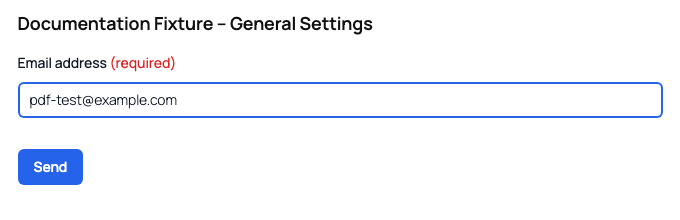
PDF Template controls the layout used when Kali Forms generates a PDF for a saved form entry. You can use the automatic table or provide an HTML template with form-field placeholders.
Before you begin
- Enable Save form entries in Settings > General Settings > Entries.
- Give each field used in the template a unique Field name.
- Confirm that the installed Pro plan includes PDF Export.
Use the automatic PDF table
- In WordPress, go to Kali Forms > Forms and edit a form.
- Select Settings in the builder navigation.
- Select PDF Template.
- Leave Use custom PDF template disabled.
The automatic A4 portrait PDF includes the form title, entry number and date, and a table of submitted field labels and values. Layout-only fields, buttons, hidden fields, page breaks, and captcha fields are omitted. Empty values are not added to the table.
Create a custom PDF template
- Open Settings > PDF Template.
- Enable Use custom PDF template.
- Enter the HTML structure and text for the PDF.
- Insert field placeholders in the form
{field_name}. - Select Save.
- Submit the published form to create a test entry.
- Open the entry and download its PDF to review the result.
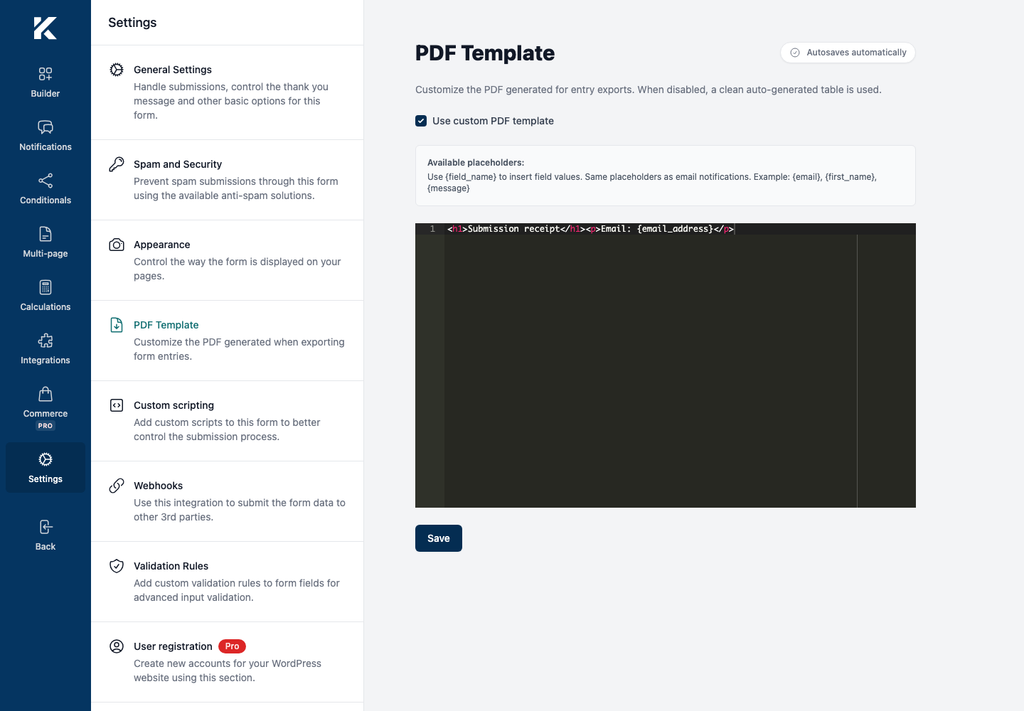
Placeholders use the same field names as notification placeholders. If the form’s email field is named email_address, use {email_address}. Do not use a field’s visible label unless it is also its field name.
Test the template
- Open a published page containing the form.
- Enter non-sensitive sample values.
- Submit the form successfully.
- In WordPress, open the form’s saved entries.
- Download the PDF for the new entry.
- Confirm that each placeholder was replaced and that the content fits the A4 portrait page.